 Junction
Choose a browser every time you click a link
Junction is a free, open-source macOS app that becomes your default browser and routes each link by your rules. Its picker asks where a link should open — for every link, for the links your rules don’t cover, or only when you hold ⌥ Option.
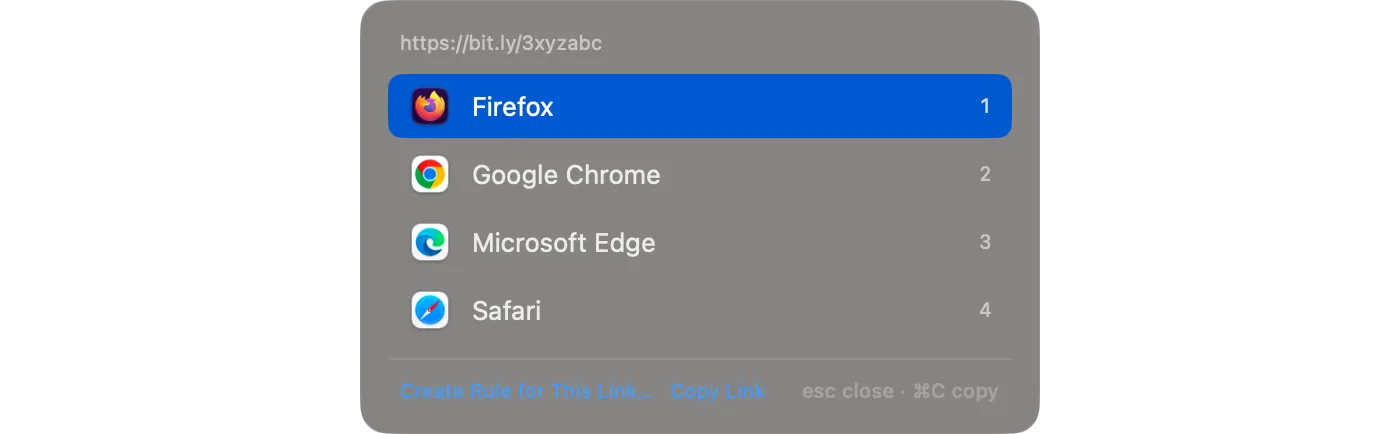
How do I choose a browser each time I click a link?
Set Junction’s fallback to the picker. Your rules still route the links they match, and every other link shows the picker.
{
  "fallback": { "app": "picker" }
}$ junction test "https://example.com/"
input: https://example.com/
rule: none
action: show picker
url: https://example.com/You can also choose the picker as the fallback in Junction’s Settings.
Can I skip my rules for one link?
Yes. Hold ⌥ Option while you click a link and Junction shows the picker, whatever your rules say.
Can only some links ask?
Yes. Give a rule the prompt action and the links it matches always ask. Short links are a good fit, since you can’t see where they go:
{
  "name": "Short links → ask",
  "match": { "patterns": ["bit.ly/*", "t.co/*", "lnkd.in/*", "tinyurl.com/*"] },
  "action": { "prompt": true }
}
What happens when several links arrive at once?
They collect in one picker — more in opening several links at once. Links sent to the picker while it’s open join one list:
- Choose a browser to open them all there.
- Copy them, one per line.
- Esc, or clicking away, cancels the whole list.
How do I change how the picker looks?
Go to Settings → Browsers → Picker appearance. You can lay the picker out as a list or a row, with or without names, at any icon size. The same settings live in the config file:
| Key | Values | Default |
|---|---|---|
layout |
"vertical", "horizontal" |
"vertical" |
labels |
"name", "none" (icons only) |
"name" |
iconSize |
16–64 points | 22 |
{
  "picker": { "layout": "horizontal", "labels": "none", "iconSize": 40 }
}
In the horizontal layout, ←/→ move between choices and ↑/↓ jump a row. Settings → Browsers also sets which browsers and profiles appear in the picker.
Can the picker choose a browser profile?
Yes — profiles appear in the picker alongside browsers. To send links to a profile automatically instead, see Chrome profiles. For links you’d rather not open at all, see link privacy.
Get Junction
Junction is free and MIT-licensed, for macOS 13 or later on Apple silicon and Intel. Install it with Homebrew or the DMG, then follow the first-launch steps.